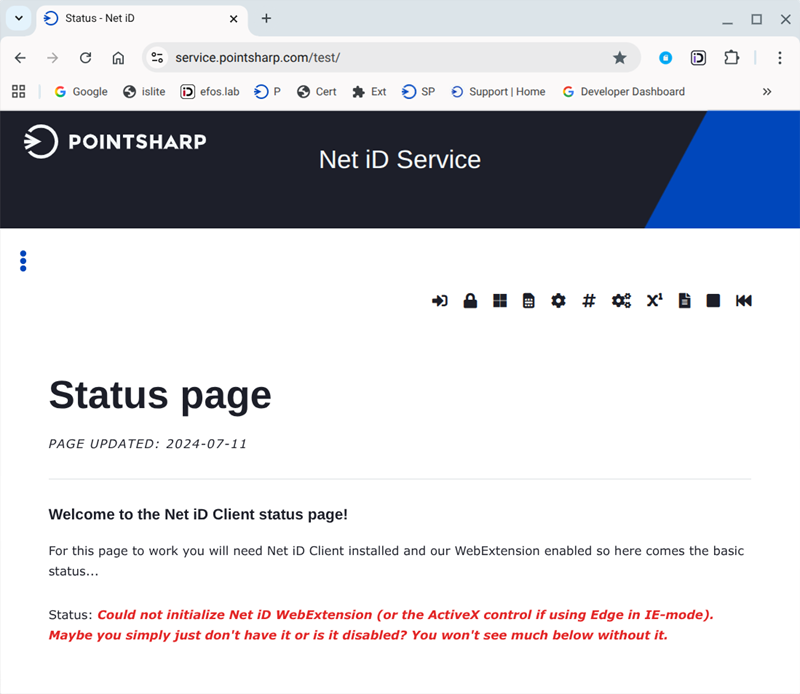
Page updated: 2026-10-15
Latest released version of ChromeOS:
154.0.8037.151
ASUS Chromebook CX9400CE
154.0.8037.151
ASUS Chromebook C425T-H50029
150.0.7871.256
Installation and configuration
1)
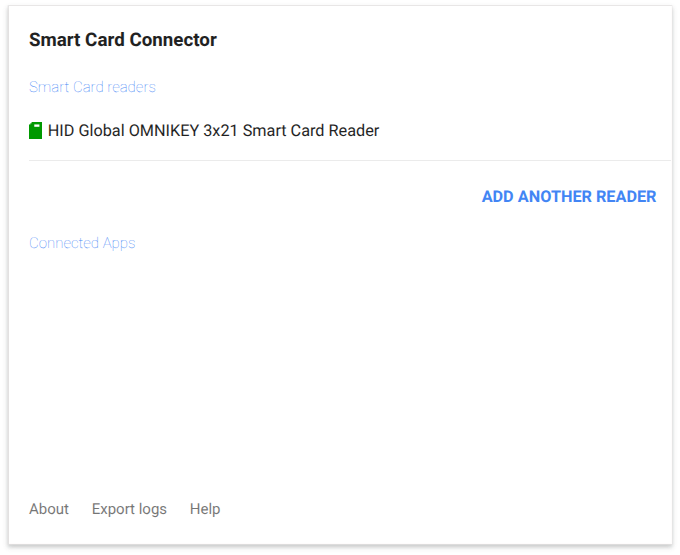
Start by installing Googles 'Smart Card Connector'. You will see a warning about apps but never mind, its an extension# Version 4.0.2 of the connector was shipped by Google 2025-12-03 (says 3.0 in Chrome Web Store but that is wrong)
Link:
Smart Card Connector
Attach a smart card reader (USB-C or USB-A) or insert a Yubkey and make sure you see it when opening the connector
You can "Pin" the connector so that you can just click on it in the Chrome browser)
Note: Under "Connected Apps" nothing should be listed in this phase
Picture 1
2)
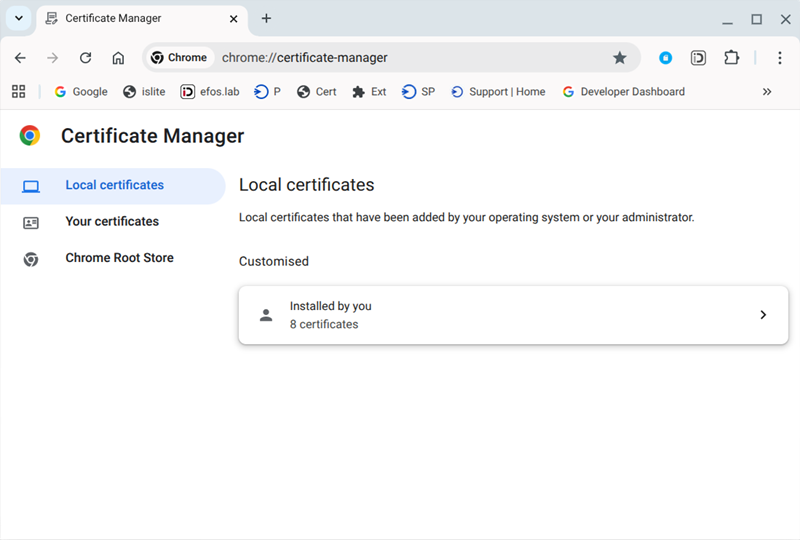
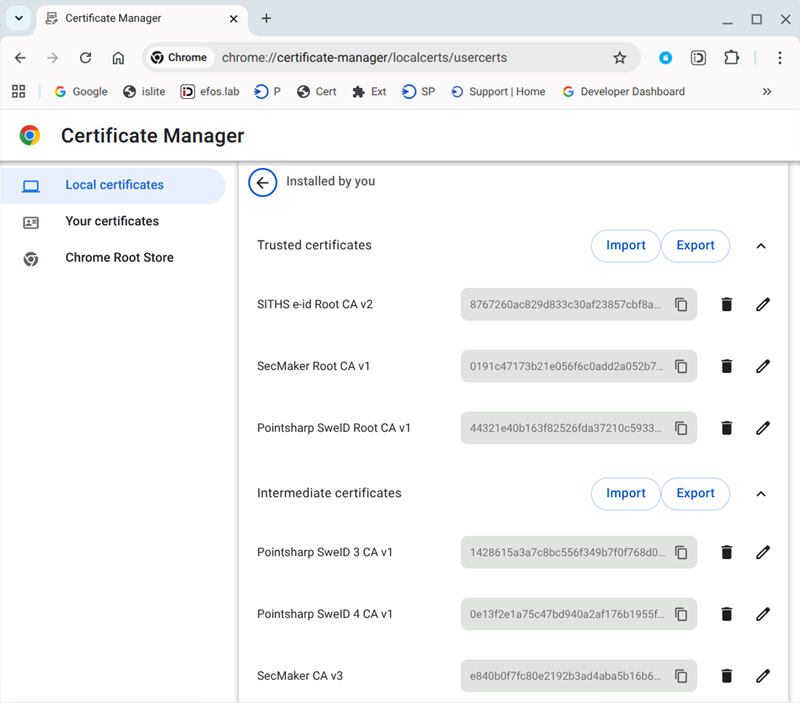
Before you install Net iD for ChromeOS you must import the certificates for the RootCA and the IssuingCA corresponding to whats on your cards/tokens.- You do this by starting the Chrome browser and then type chrome://certificate-manager in the URL field
- Under "Local certificates" click on "Installed by you"
- Import the RootCA-certificate under "Trusted certificates" and the IssuingCA-certificate(s) under "Intermediate certificates"
Picture 2
Picture 3
3)
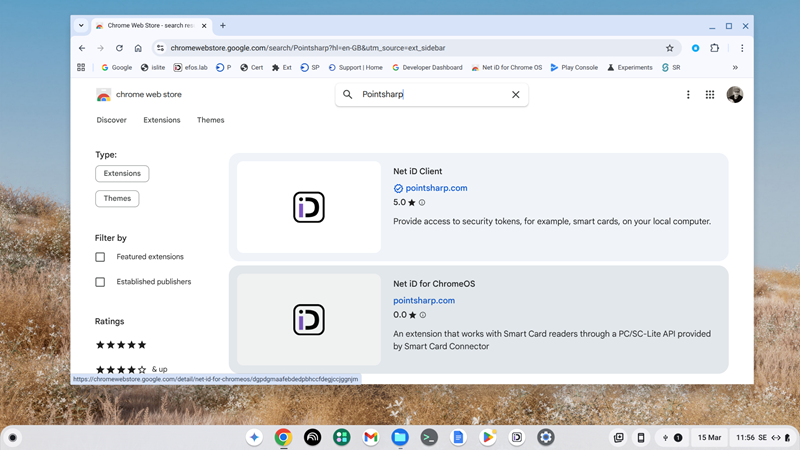
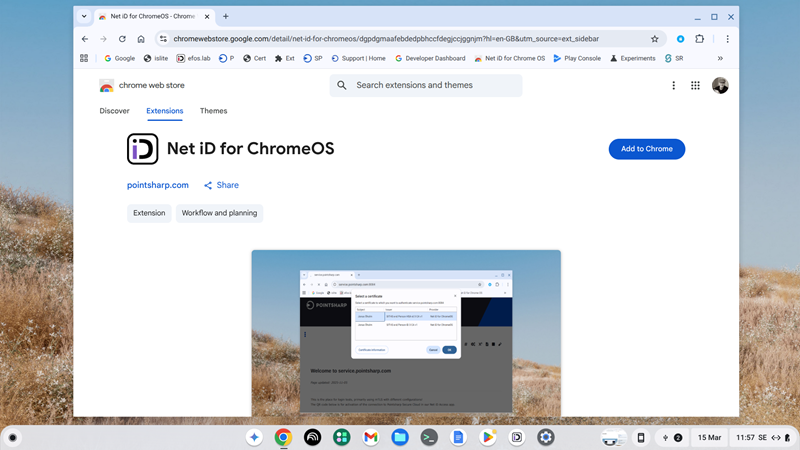
Now its time for Net iD for ChromeOS (no longer an app but an extension, apps are depricated)- Browse to Chrome Web Store and search for "Pointsharp" or "Net iD" or use the direct link below
- Make sure to select "Net iD for ChromeOS", not "Net iD Client"
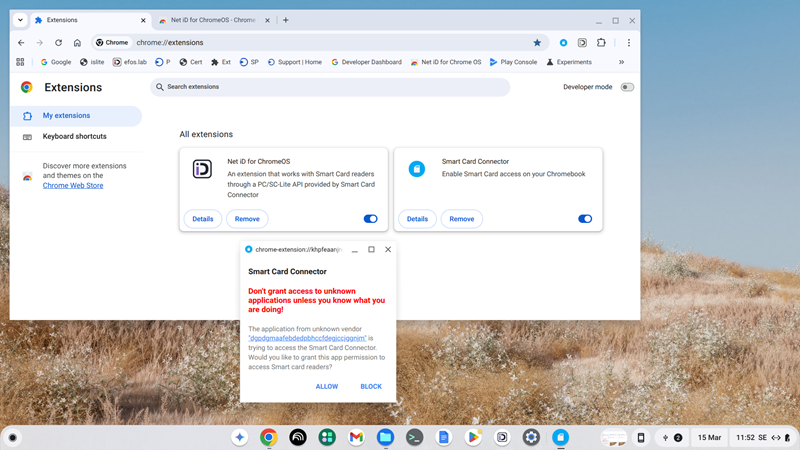
- When "Net iD for ChromeOS" is installed you will be prompted to allow it to hook into Googles 'Smart Card Connector'
Note: We will talk to Google to make sure the allow prompt will say "Net iD for ChromeOS", not some underlying identifier.
Net iD Client for ChromeOS
Picture 4
Picture 5
Picture 6
4)
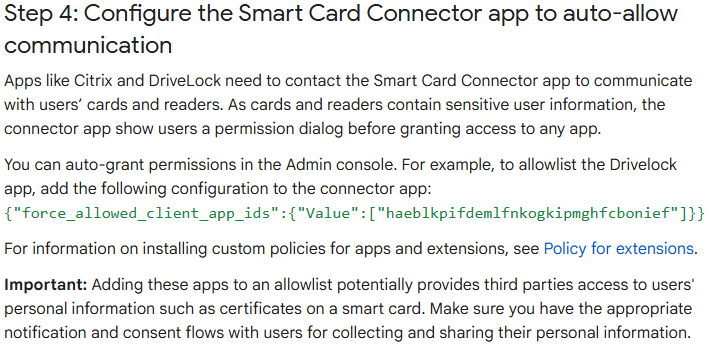
If you manage your Chromebooks there is a way to avoid the allow prompt =>dgpdgmaafebdedpbhccfdegjccjggnjmDeploy smart cards on ChromeOS
Picture 7
Using Net iD for ChromeOS with mTLS
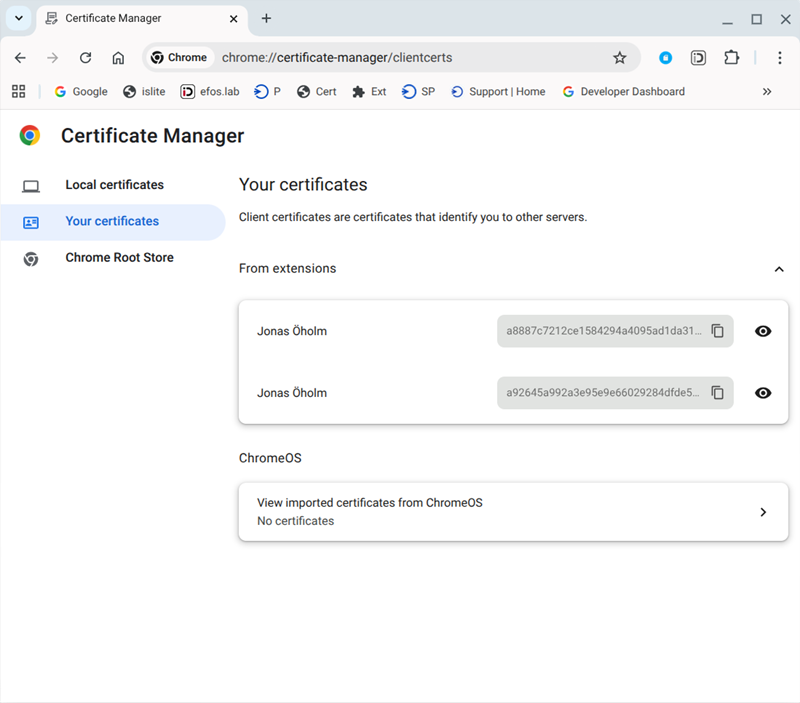
Now lets start using Net iD for ChromeOS with the Smart Card Connector- First, start the Chrome browser and then type chrome://certificate-manager in the URL field
- Under "Your certificates" and "From extensions" you should be able to see your certificate(s)
- If not, something is wrong, often some mistake with RootCA and the IssuingCA, see above.
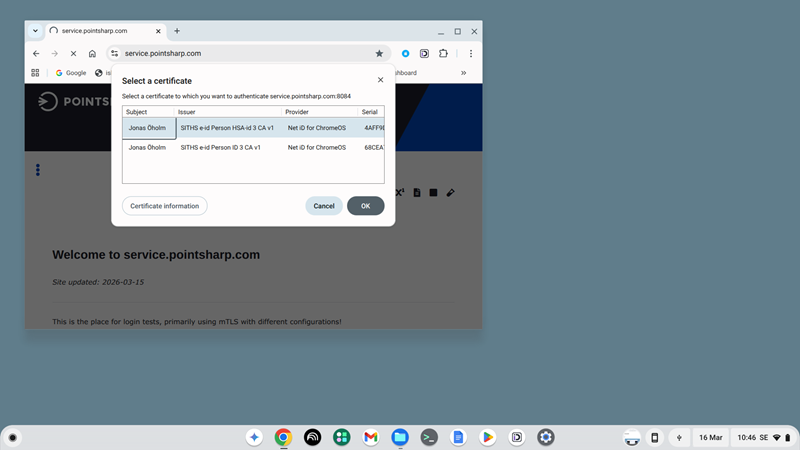
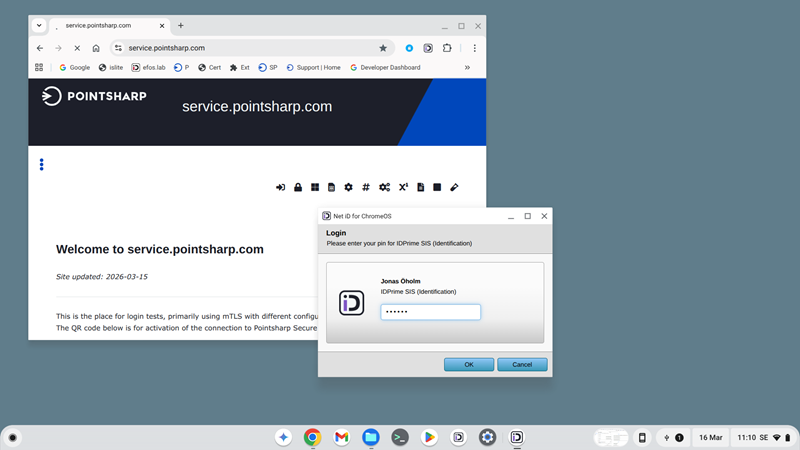
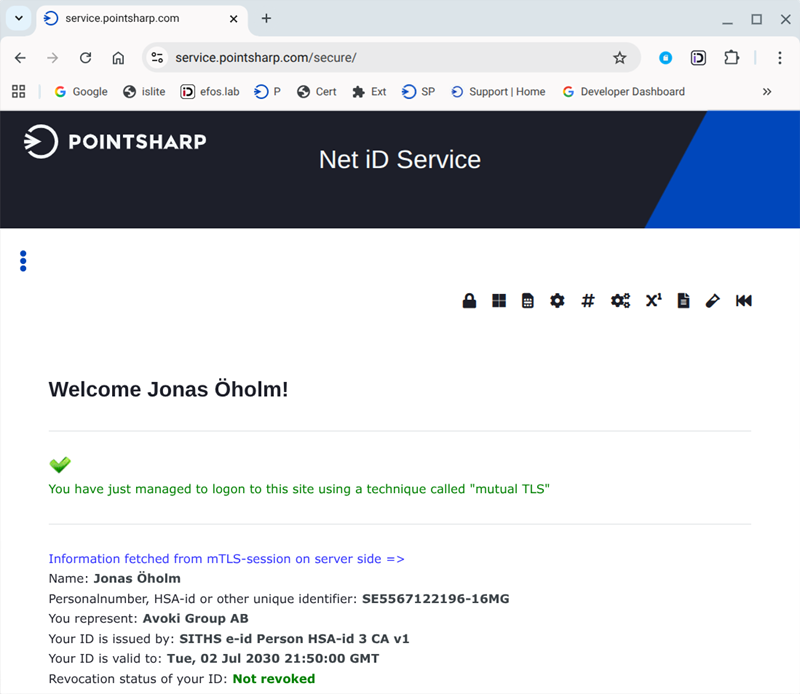
- When you see your certificate(s) then just try to login to some site using mTLS for authentication
- You should see a sequence like in the screenshots below.
Note: With this version of Net iD for ChromeOS (1.4.0.112) you can not use the Webextension used with Net iD Client on Windows/macOS/Linus. See picture 12 below.
Picture 8
Picture 9
Picture 10
Picture 11
Picture 12